
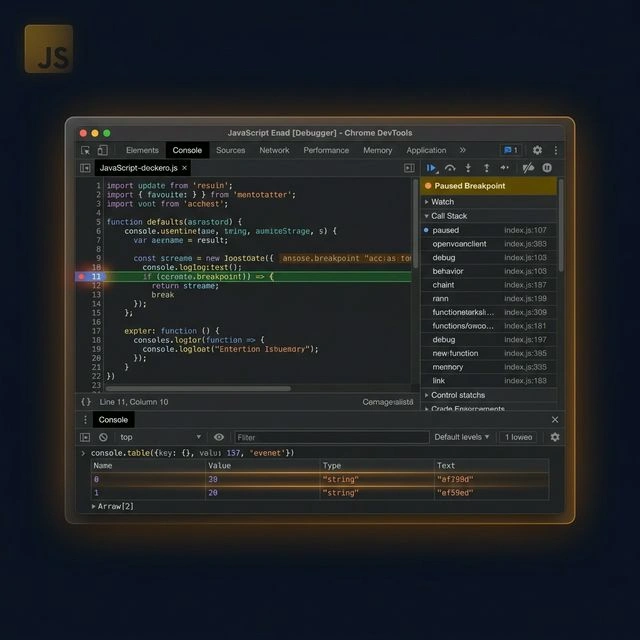
Most developers learn to debug by adding console.log everywhere. It works — until it doesn't. When you are dealing with async race conditions, deeply nested component state, or a production bug you cannot reproduce locally, console.log leaves you guessing. Professional engineering teams use a different playbook.
This guide covers the debugging techniques that actually matter in production codebases — from the full range of console methods most developers ignore, to breakpoints, async stack traces, network inspection, memory leak detection, and the error tracking tools that let you catch bugs before users report them. We also look at Chrome DevTools capabilities that go far beyond what most developers use day to day.
1. Console Methods Beyond console.log()
console.log is a blunt instrument. The console API has a dozen other methods that communicate intent better and make your debug output far easier to read.
console.table() — for arrays and objects
When you are inspecting an array of objects, console.table() renders them as a proper table with sortable columns. This is dramatically easier to read than nested object notation in the console:
1const users = [2 { id: 1, name: "Alice", role: "admin" },3 { id: 2, name: "Bob", role: "viewer" },4];5console.table(users);6// Renders as a sortable table — id | name | roleconsole.group() — for related log sequences
When a single action triggers multiple log statements, group them so you can collapse the output and find what you need:
1console.group("Checkout flow");2console.log("Cart validated:", cartIsValid);3console.log("Payment intent created:", paymentId);4console.log("Order created:", orderId);5console.groupEnd();console.assert() — conditional warnings
Rather than wrapping a log in an if statement, console.assert() only outputs when the condition is falsy. This is useful for invariant checks during development:
1console.assert(userId !== null, "userId should never be null at this point");console.time() — quick performance measurement
Before reaching for a profiler, use console.time() and console.timeEnd() to measure how long a specific operation takes:
1console.time("fetchUsers");2await fetchUsers();3console.timeEnd("fetchUsers");4// fetchUsers: 342msconsole.trace() — where was this called from?
When a function is being called from an unexpected place, console.trace() prints the full call stack at that point — far more useful than printing just the value.
2. The debugger Statement
The debugger keyword is a programmatic breakpoint. When DevTools is open and execution reaches this line, it pauses — giving you an interactive inspection session with the full call stack, every variable in scope, and the ability to evaluate expressions in real time.
1async function processPayment(order) {2 if (order.total > 10000) {3 debugger; // Pause here only for large orders4 }5 const result = await chargeCard(order);6 return result;7}The critical advantage over console.log: when paused at a debugger statement, you can hover over any variable to see its current value, open the Scope panel to inspect all locals and closures, and step line by line through subsequent execution. You see the live state of the program, not a snapshot from when a log was printed.
Always remove debugger before committing. Consider adding an ESLint rule (no-debugger, enabled by default in most configs) to catch it in CI.
3. Browser DevTools Breakpoints
Clicking a line number in the DevTools Sources panel sets a breakpoint without touching your code. But line breakpoints are only the beginning.
Conditional breakpoints
Right-click a line number and choose “Add conditional breakpoint.” Enter an expression — the breakpoint only fires when that expression is true. This is essential when debugging code inside a loop that iterates thousands of times:
1// Only pause when processing the problematic order2order.id === "ORD-9821" && order.total > 5000Logpoints — console.log without touching code
Right-click a line and choose “Add logpoint.” Enter a message (support template literals). DevTools logs it every time that line is hit, without pausing. This is a non-intrusive alternative to sprinkling console.log through your codebase.
DOM breakpoints
In the Elements panel, right-click any DOM node and choose “Break on.” Options include subtree modifications (fires when any child changes), attribute modifications (fires when an attribute changes), and node removal. Invaluable when an element is changing unexpectedly and you cannot find which script is responsible.
XHR/Fetch breakpoints
In the Sources panel, the Breakpoints section includes an XHR/Fetch Breakpoints option. Add a URL substring (e.g., /api/orders) and DevTools will pause every time a fetch to a matching URL is initiated — letting you inspect request options and trace the call back to its origin.
Event listener breakpoints
The Event Listener Breakpoints section lets you pause on any event category — click, scroll, keypress, animation, timer, and more. This is the fastest way to find which handler is responding to a user action you cannot track down.
4. Try-Catch Blocks and Error Boundaries
Unhandled errors are the hardest to debug because they often crash your application silently or produce misleading stack traces. Proper error handling makes your code both more robust and significantly easier to debug.
try-catch with specific error types
Catch errors at the right level — not too broad, not too narrow. Re-throw errors you cannot handle so they propagate to a layer that can:
1async function fetchOrderDetails(orderId) {2 try {3 const response = await fetch(`/api/orders/${orderId}`);4 if (!response.ok) {5 throw new Error(`HTTP ${response.status}: Failed to fetch order ${orderId}`);6 }7 return response.json();8 } catch (error) {9 if (error instanceof TypeError) {10 // Network failure — user may be offline11 console.error("Network error:", error.message);12 } else {13 // Unknown — re-throw for the caller to handle14 throw error;15 }16 }17}Global error and rejection handlers
Set up global handlers early in your application to catch anything that slips through:
1window.addEventListener("error", (event) => {2 console.error("Uncaught error:", event.error);3 // Send to error tracking: Sentry.captureException(event.error)4});56window.addEventListener("unhandledrejection", (event) => {7 console.error("Unhandled promise rejection:", event.reason);8 event.preventDefault(); // Suppress default console noise9});React Error Boundaries
In React applications, wrap critical sections in Error Boundaries to prevent a single component failure from crashing the entire app. Error Boundaries catch render-phase errors and let you display a fallback UI while logging the error to your tracking service.
5. Debugging Async JavaScript
Async bugs are disproportionately hard to debug because the call stack at the point of failure does not reflect the original trigger. A function that throws may have been called through three layers of Promises with nothing useful in the trace.
Enable async stack traces
In Chrome DevTools Settings → Experiments, enable “Async Stack Traces.” With this on, when execution pauses inside an async function, the Call Stack panel shows the full history of async calls that led there — including the original trigger across Promise boundaries.
Name your async functions
Anonymous arrow functions produce “anonymous” labels in stack traces. Named functions give you immediately readable call stacks:
1// Hard to trace:2const handler = async () => { ... };34// Easy to trace:5async function handleCheckoutSubmit() { ... }Promise chain debugging
When debugging a Promise chain, add a .catch() at each stage temporarily to identify exactly where rejection is originating:
1fetchUser(id)2 .then(user => {3 console.log("Got user:", user);4 return fetchOrders(user.id);5 })6 .catch(err => {7 console.error("Failed after fetchUser:", err);8 throw err; // Re-throw to preserve the rejection9 })10 .then(orders => {11 console.log("Got orders:", orders);12 });6. The Call Stack and Scope Chain
Understanding where you are in execution and what variables are accessible is the foundation of effective debugging. When paused at a breakpoint, the DevTools Call Stack panel shows every function that is currently active, from the current frame at the top down to the initial entry point.
Reading the call stack
Click any frame in the Call Stack panel to jump to that function and inspect its local variables. This is how you answer the question: “this function received bad data — where did that data come from?” Work up the stack frame by frame until you find where the incorrect value originated.
The Scope panel
When paused at a breakpoint, the Scope panel shows every variable accessible from that position: Local (variables in the current function), Closure (variables captured from enclosing functions), Script (module-level variables), and Global. This is particularly useful for debugging closure-related bugs where a variable has an unexpected value because of when or where it was captured.
Blackboxing library code
When stepping through code, you often end up inside React internals or lodash — not your own code. Blackboxing a script tells DevTools to skip it during stepping, keeping your focus on your application code. Right-click a script in the Sources panel and choose “Add script to ignore list.”
7. Network Tab: Debugging API Communication
Most runtime bugs involve data — wrong shape, missing fields, unexpected status codes. The Network panel is the authoritative record of every HTTP request your page makes.
What to check first
- Status code: 200 (success), 401 (auth required), 403 (forbidden), 404 (not found), 422 (validation error), 500 (server crash). The status code usually tells you exactly which layer the problem is in.
- Response body: Inspect the actual JSON returned. Many bugs come from the API returning different field names or data shapes than your frontend expects.
- Request headers: Check that Authorization headers are present and correctly formatted. Missing or malformed auth tokens are a common source of 401 errors.
- CORS headers: If a request is being blocked by CORS policy, the Network panel will show the pre-flight OPTIONS request and its response headers.
- Timing: The waterfall shows queuing time, DNS resolution, connection establishment, time to first byte (TTFB), and download time — useful for diagnosing slow API responses.
Throttling for realistic testing
The Network panel includes a throttling dropdown. Test your loading states and error handling on simulated 3G connections — many race conditions and error state bugs only appear at realistic network speeds.
Replay requests
Right-click any request in the Network panel and choose “Copy as fetch” or “Copy as cURL.” Paste the result directly into the console or your terminal to replay the exact request with the same headers and body — useful for isolating whether a bug is in the frontend or backend.
8. Debugging Event Listeners
In complex applications, it is easy to end up with duplicate event listeners, listeners attached to the wrong element, or listeners that are never cleaned up. DevTools provides direct visibility into which listeners are attached to which elements.
Inspecting listeners in the Elements panel
Select any element in the Elements panel and open the Event Listeners tab in the right panel. This lists every event listener attached to that element (and its ancestors if you check “Ancestors”). Click the source link to jump directly to where the listener was registered.
Finding listener leaks
Listeners registered in a useEffect (or any setup code) must be removed in the cleanup function. A leaked listener continues to fire even after the component or module that owns it is destroyed:
1useEffect(() => {2 const onResize = () => setWidth(window.innerWidth);3 window.addEventListener("resize", onResize);45 // Cleanup — critical to prevent memory leaks6 return () => window.removeEventListener("resize", onResize);7 }, []);9. Performance Tab: Finding Slow Code
When your application feels sluggish but you cannot identify why, the Performance panel gives you a millisecond-level breakdown of exactly what the browser spent time doing during a recording.
Long tasks
Any task that takes more than 50ms blocks the main thread and makes the interface feel unresponsive. The Performance panel highlights these in red. Click a long task to see the call tree and identify which specific function(s) are consuming the time.
Layout thrashing
Reading layout properties (like offsetHeight, getBoundingClientRect()) immediately after writing styles forces the browser to perform a synchronous layout calculation (called “forced reflow”). In a loop, this can stall the browser for hundreds of milliseconds. The Performance panel marks these as “Layout” tasks with a warning icon.
React-specific: the Profiler
The React Developer Tools browser extension adds a Profiler tab that records render timing for every component. Use it to find components that are rendering unnecessarily — the most common cause of React performance problems. The “why did this render?” feature in the Profiler tells you exactly which prop or state change triggered each render.
10. Memory Debugging: Finding Leaks
Memory leaks in JavaScript applications cause gradual slowdown over time. The page gets slower the longer it runs — a symptom that is hard to notice in development but obvious in production after a user has had a tab open for hours.
The Memory panel workflow
The Chrome Memory panel offers three tools: Heap Snapshot, Allocation Instrumentation on Timeline, and Allocation Sampling. The most useful starting point is heap snapshots:
- Take a baseline snapshot.
- Perform the action you suspect is leaking (navigate a route, open and close a modal, etc.).
- Take a second snapshot.
- Switch Snapshot 2 to “Comparison” view against Snapshot 1.
- Sort by “# Delta” — the top entries are objects that have accumulated.
Common leak sources
- Detached DOM nodes: Nodes removed from the document but still referenced by a JavaScript variable or closure. The Memory panel's “Detached elements” filter surfaces these directly.
- Event listeners: Listeners attached to DOM nodes or window that are never removed when the relevant component or module unmounts.
- Closures holding large data: A callback that captures a large array or object in its closure, preventing it from being garbage collected even after the array is no longer needed.
- setInterval without clearInterval: Intervals continue to run and hold references indefinitely until explicitly cleared.
11. Source Maps: Debugging Minified Production Code
Production bundles are minified — variable names become single letters, whitespace is removed, multiple files are merged. Stack traces from production errors point to nonsensical locations likea.js:1:482944. Source maps bridge the gap between your built output and the original source.
When source maps are generated alongside your bundle (most build tools like Vite, webpack, and Next.js do this with a config option), DevTools automatically maps the compiled code back to your original files and line numbers. You see your real code in the Sources panel, real variable names in the Call Stack, and real file references in error messages.
For production error tracking, services like Sentry accept source map uploads at deploy time. This means every stack trace in your error dashboard points to the correct line in your original source — not the minified bundle.
12. Error Tracking in Production
You cannot reproduce every bug locally. Production environments have different data, different devices, different network conditions, and millions of edge cases your test suite will never cover. Error tracking services capture bugs as they happen in the wild and surface them with enough context to fix them without needing to reproduce them.
Sentry
Sentry is the most widely adopted option. It captures: the full stack trace (with source maps applied), the user's browser and OS, the URL they were on, recent breadcrumbs (console logs, network requests, user actions in the seconds before the error), and custom context you attach (like user ID or feature flags). It integrates with GitHub to link errors to the specific commit that introduced them and with Slack to route alerts to the right team.
LogRocket
LogRocket adds session replay on top of standard error tracking. For each captured error, you can watch a video replay of exactly what the user did before it occurred — including every click, scroll, network request, and Redux action. For UI bugs that depend on specific user sequences, this is invaluable.
A systematic debugging workflow
Error tracking tools are most effective when combined with a consistent process:
- Reproduce: Can you trigger the bug reliably? If not, look at the breadcrumbs in your error tracker to understand the sequence of events.
- Isolate: Narrow down exactly where the unexpected behavior occurs. Comment out code, use binary search through the call stack.
- Understand: Identify the root cause — not just the symptom. A null pointer exception is a symptom. The missing null check four layers up is the root cause.
- Fix and verify: Apply the fix and verify it resolves the issue without breaking adjacent behavior.
- Regression test: Write a test that would have caught this bug. If the bug was hard to find, document why so the next developer benefits from the investigation.
Conclusion
Effective JavaScript debugging is not about knowing tricks — it is about building systematic habits. Replace ad-hoc console.log with intentional console methods. Use breakpoints instead of print statements for complex flow tracing. Set up global error handlers to catch what you miss. Configure an error tracking service before you go to production, not after your first incident.
The developers who resolve bugs fastest are not the ones who are most clever — they are the ones who know where to look and what tools to use at each stage. If you want to see how we approach engineering quality at Devian, browse our engineering and product guides or learn about our development services.
Reader Thoughts
0 comments — join the conversation
Be the First
No thoughts shared yet. Start the conversation with your unique insight.